We will create a Razor Pages website through Rider’s interface and run it. You can repeat the process with a new name.
02 — Back to the development environment: run and change a website
1. Prepare the tools
Install JetBrains Rider and the .NET 10 SDK for your operating system. On a Mac, choose Arm64 for Apple Silicon or x64 for Intel. If Rider was open during installation, reopen it.
2. Create a solution and project through the interface
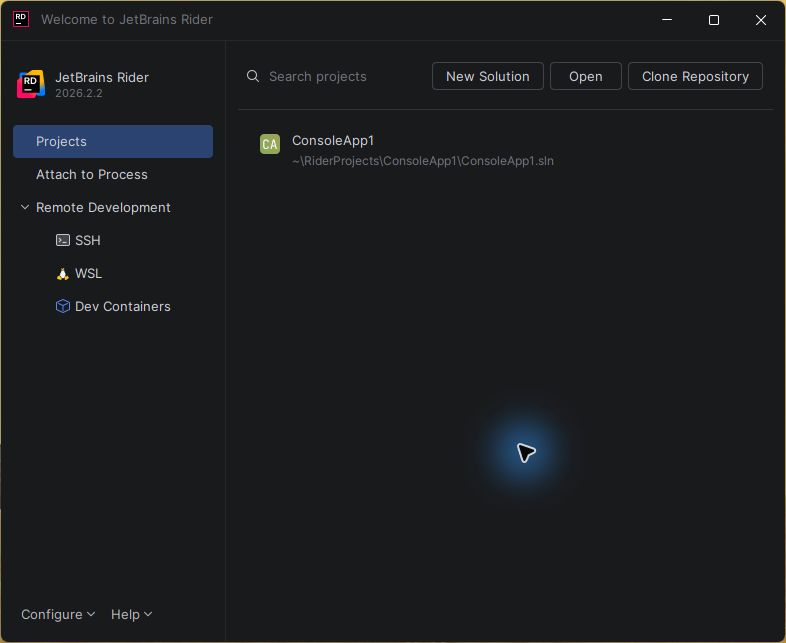
On Rider’s start screen, click New Solution, as shown in the screenshot. If a solution is already open, choose File → New Solution.
Choose Web, then Razor Pages
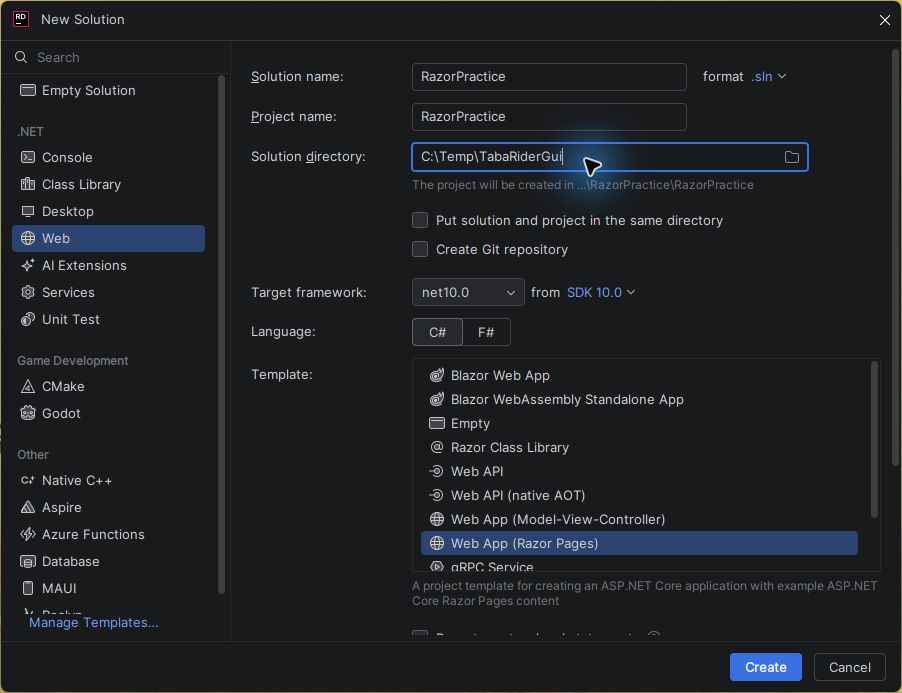
Choose Web on the left. In the Template list, explicitly choose Web App (Razor Pages) — entering the Web category may initially select Blazor, so check the selected row.
Choose any practice name, such as RazorPractice, and your own parent folder. The screenshot uses an example folder in Windows; on a Mac, you can choose WebProjects in your home folder. Do not copy the example path if it is not your folder.
Check the creation settings
- In Solution name, enter any English name without spaces, such as
RazorPractice. Keep Project name the same. - In Solution directory, choose your own parent folder, such as
WebProjectsin your home folder. Check the full path before confirming creation. Do not choose another project’s folder. - Leave Put solution and project in the same directory unchecked. This gives you an outer solution folder and an inner project folder.
- Choose C# and the net10.0 framework. Scroll down using the outer scrollbar on the right, past the template list, to see the additional options.
- Leave Do not use top-level statements unchecked. Set Auth to No authentication. Leave Add Dockerfile unchecked. You do not need to change Advanced Settings.
- Uncheck Create Git repository. At this stage, you are practising creating and running; sharing on GitHub comes after Bootstrap.
- Click Create and wait for file creation and package restore to finish.
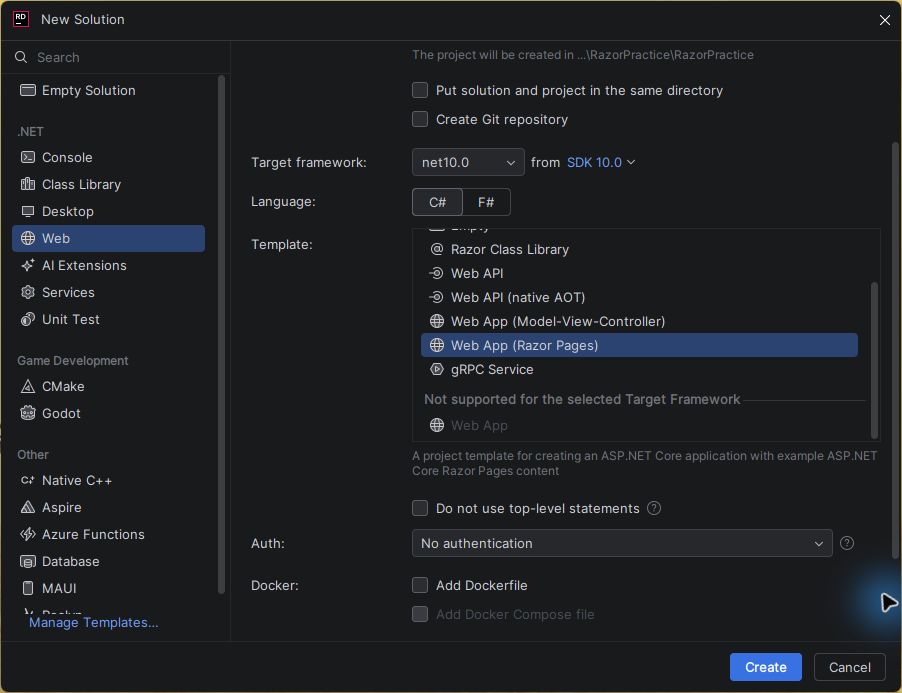
You can click any screenshot to view it at full size.
If .NET 10 or the correct template does not appear, check the SDK installation and ask the teacher. Do not choose another template just to continue.
3. Run and check
- In the Solution window on the left (the file tree), expand the project and
Pages. Check thatIndex.cshtml, a.csprojfile and thewwwrootfolder exist. - In the run-configuration list on the top toolbar, select RazorPractice: http, or your own project name followed by
http. If this profile is already selected, leave it. Click Run ▶. - Wait for the build to finish. If the browser does not open automatically, open the
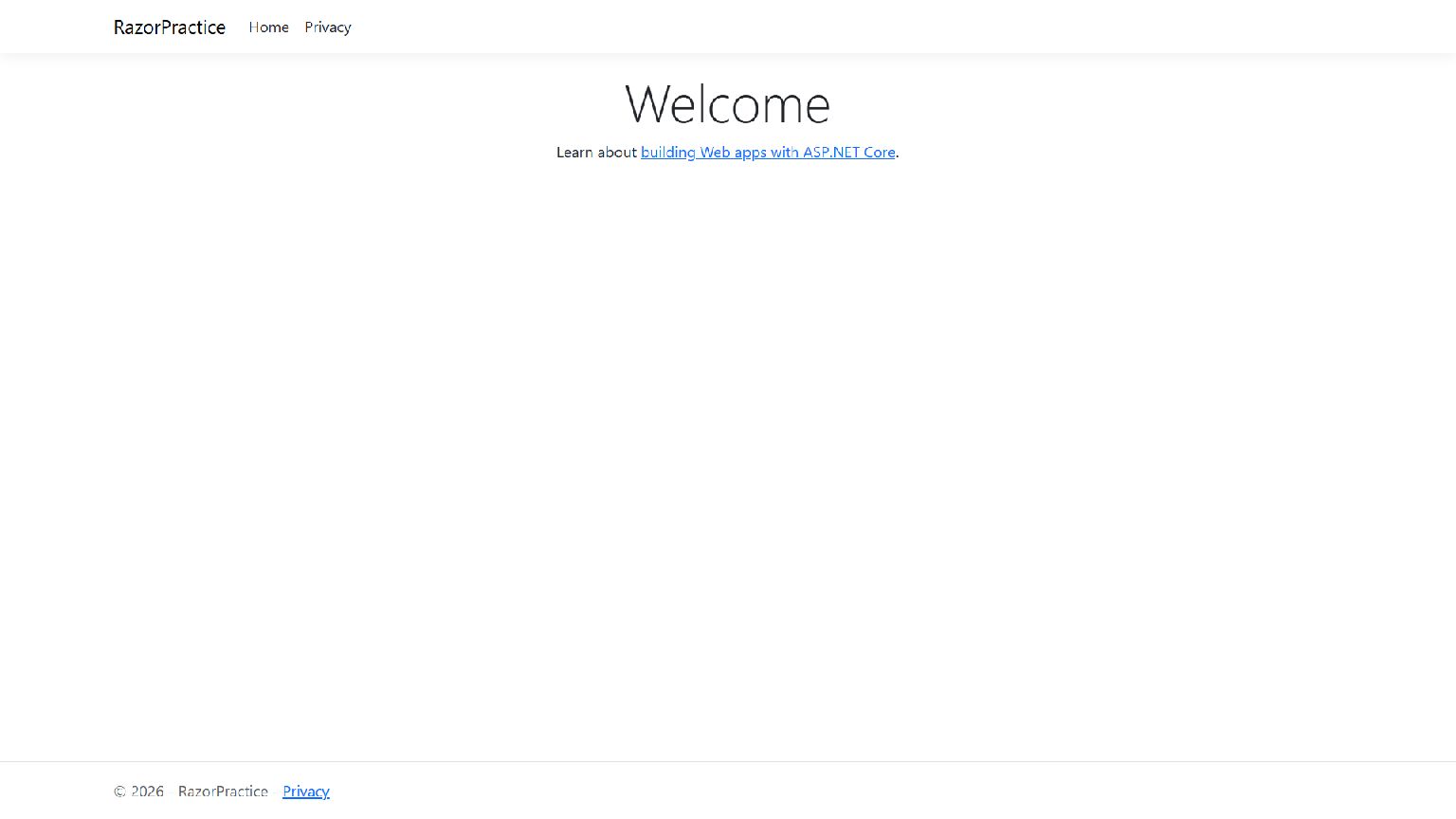
http://localhost:…address displayed in the Run window. Use the port number your project displays. - Check that Welcome appears with the Home and Privacy menu. Stop using Stop ■.
- Open
Pages/Index.cshtml, replaceWelcomewithהחיות שלי(“My animals”), save and run again. Check that the heading changed.
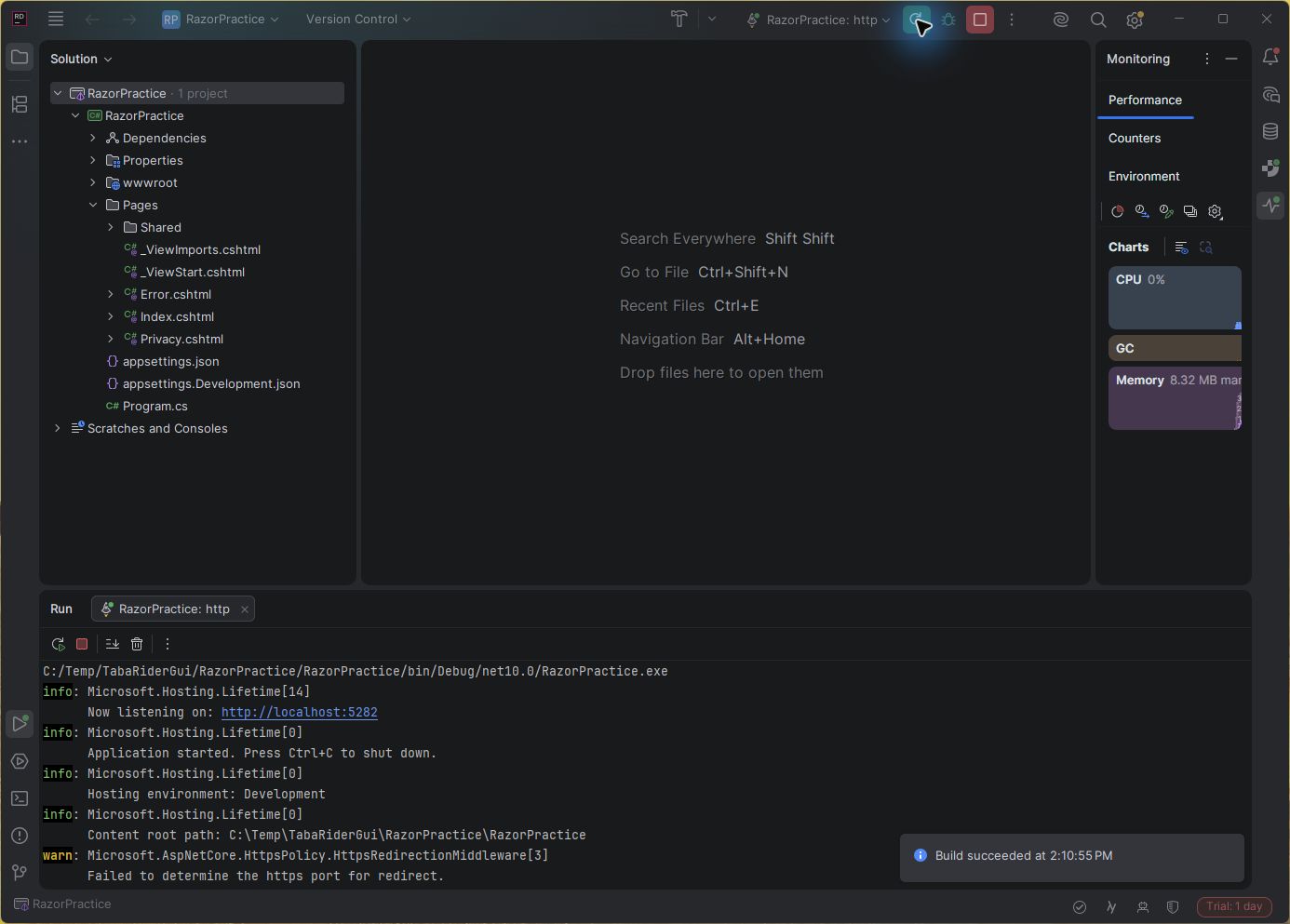
The Rider screenshot shows the project and Pages on the left, the http profile on the top toolbar and the Run window at the bottom. The Now listening on line displays your website’s address. Your port number may differ from the screenshot. The yellow warning in the screenshot says no HTTPS port was selected when running the http profile; if Now listening on appears and the Welcome page opens, the HTTP run succeeded.
The browser should display the template page with Welcome, the Home / Privacy menu and your project name.
You have a Razor Pages website created from a template and running from Rider. Bootstrap is already in wwwroot/lib/bootstrap, and your personal stylesheet is wwwroot/css/site.css.
4. Continue or try again
For existing work, choose Open and open the .sln or .slnx solution file. To practise creating again, stop the run, return to New Solution and choose a new name, such as RazorPractice2, and a new folder alongside the first. Keep the earlier experiment; you do not need to delete it.
Leave Program.cs, the run settings and template files in place. You do not need to publish anything online.
Help: create a website in Rider