We will create and run a website in Visual Studio, VS Code or Rider, get to know its files and change its content. We will save, run and see the result in the browser.
Previous lesson: 01 — My first page · Next lesson: 03 — Making the website mine
On a touchscreen, swipe right for the next lesson and left for the previous lesson.
What we will learn
- Run a local website in Windows or macOS.
- Identify
Pagesandwwwroot. - Edit HTML, save files and check the result in the browser.
The instructions are in English; the shared example website keeps its Hebrew text and right-to-left (RTL) layout. Keep the Hebrew strings and lang="he" dir="rtl" in the examples, including “החיות שלי” (“My animals”), so your website matches the next lessons.
Try creating a Razor Pages project
So far, you have practised HTML tags and CSS rules in an ordinary file, without a project. Now we will create a website from a ready-made template. This is still an experiment: choose any English name without spaces, such as RazorPractice. You can create several projects, each with its own name and folder. You do not need a GitHub account or to share anything with your teacher at this stage.
Keep the first-page folder as a separate exercise. The new project’s home page will start again with a heading, a paragraph and an image; later you will add your own content and styling. We will copy the image later in this lesson and write CSS in a separate file instead of inside style.
Open the guide for your development environment. Each guide takes you from creating the project to seeing Welcome in the browser, and you can return to it whenever you want to practise again.
Visual Studio in Windows — create Razor Pages through the interface
1. Install the development tools
- Install a version of Visual Studio Community that supports .NET 10. If Visual Studio is already installed, open Visual Studio Installer and check whether an update is needed.
- In the installer, select ASP.NET and web development and click Install. For an existing installation, click Modify, select the component and complete the change.
- Make sure the .NET 10 SDK is installed. If it is missing, install it and reopen Visual Studio.
A project contains the website’s code. A solution is a container Visual Studio uses to open and manage projects. Ours will contain one project.
2. Choose a location and names
Visual Studio will create the project folders for you. Start on the application’s start screen.
Open the project creation window
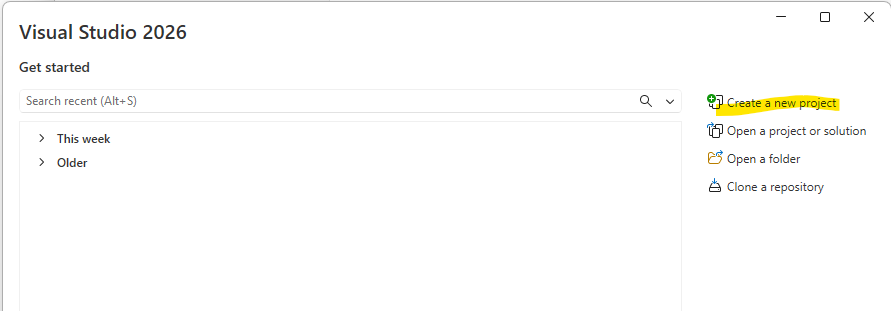
Open Visual Studio 2026. On the right side of its start screen, click Create a new project, as marked in the screenshot.
If a workspace is already open, choose File → New → Project to reach the same window.
Find and select the website template
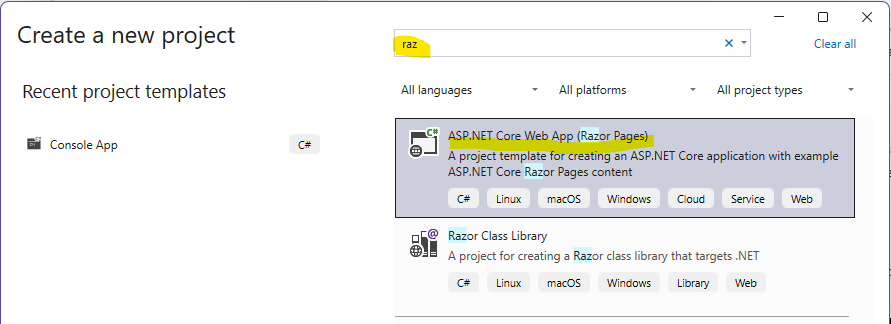
In the search box at the top, type raz. In the results, click ASP.NET Core Web App (Razor Pages), as marked in the screenshot, then Next at the bottom.
Make sure you selected the C# website template. The Razor Class Library result below it is not the template we will use. Do not choose Blazor, Web API or a template with MVC in its name.
You can click any screenshot to open it at full size.
Name the project and choose a folder
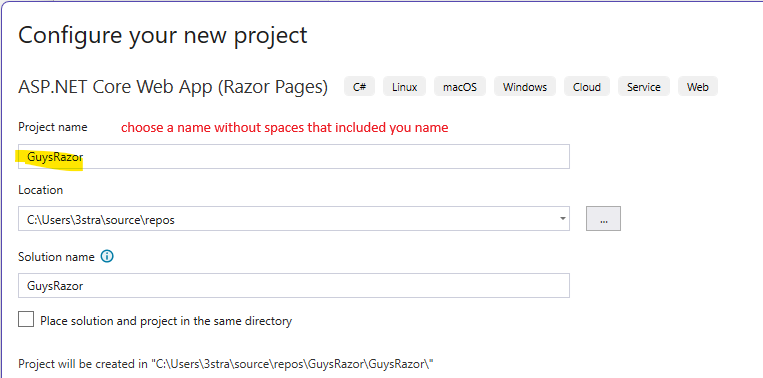
The screenshot uses GuysRazor; you can choose another practice name.
In Configure your new project, choose an English name without spaces, such as RazorPractice or AnimalsTry2. This is a practice project; the required personal name will be set in the Git lesson after Bootstrap.
- Project name: enter your chosen name.
- Location: keep Visual Studio’s suggested default, usually
source\reposinside your user folder. Do not copy the3strausername from the screenshot. - Solution name: keep the same name as the project.
- Place solution and project in the same directory: leave unchecked.
At the bottom, you can see where the project will be created. Click Next. You do not need to create a folder in File Explorer first.
Visual Studio will create an outer solution folder and an inner project folder, both with your chosen name. In our example, both are called RazorPractice.
If you already created the project, open it through Open a project or solution and choose RazorPractice.sln or RazorPractice.slnx in the existing folder. You do not need another project to continue existing work. To practise creating again, choose a new name and a new folder. Leave first-page from the previous lesson as it is.
3. Create the Razor Pages project
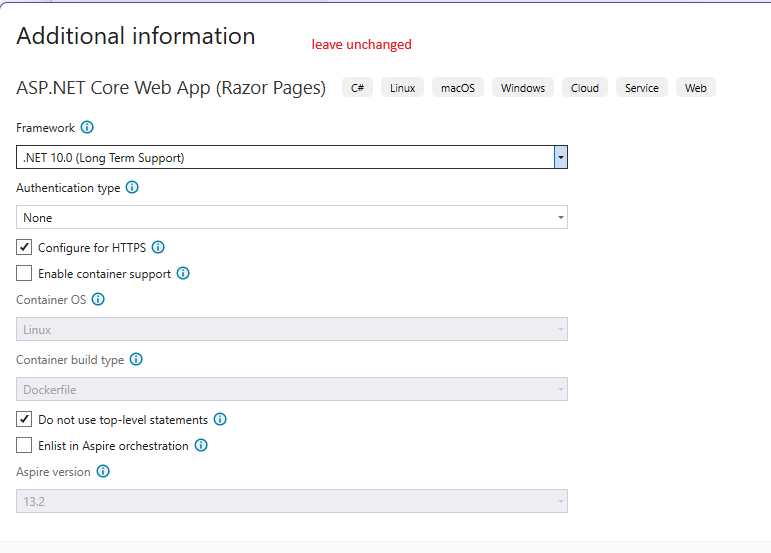
In Additional information, choose the following settings. Note the stated difference concerning top-level statements in the older screenshot:
- Framework: .NET 10.0 (Long Term Support).
- Authentication type: None.
- Configure for HTTPS is checked.
- Enable container support is unchecked.
- Do not use top-level statements is unchecked: keep the template’s normal startup code. The older screenshot shows it checked; uncheck it in your project.
- Enlist in Aspire orchestration is unchecked.
The greyed-out fields need no action. Click Create at the bottom and wait for the project to be created.
If Razor Pages or .NET 10 is not listed, return to installation and updating. Do not choose another template just to get past this screen; show the teacher what is missing.
4. First check: press Play and see a website
Immediately after Create, wait for the project window to open and loading to finish. Before changing code, check that the generated project runs:
- Click the green triangle ▶ (Play) on Visual Studio’s top toolbar.
- Wait for the build to finish and the browser to open. The first run may take a little while.
- Check that the browser displays the website’s opening page with the Welcome heading and that its address bar shows
localhostwith a port number. This is your website, running on your computer right now.
Check successful: you pressed Play and the Welcome page opened in the browser. The project was created successfully and you can continue working on it and trying changes.
If the website does not open or a build error appears, stop here and show the message to the teacher. Continue editing only after the website runs.
Asked to approve an HTTPS certificate on the first run?
Visual Studio may ask you to approve a local development certificate for HTTPS. Ask the teacher if you are unsure what to approve. You can also stop the run, select http in the list beside the green triangle and press Play again.
Stop, get to know the files and change a heading
Return to Visual Studio and click the red Stop square on the top toolbar to stop the run.
Open View → Solution Explorer. Expand the RazorPractice project and the Pages folder. You can see this structure in the file tree:
source/repos/
└── RazorPractice/
    ├── RazorPractice.slnx (או RazorPractice.sln)
    └── RazorPractice/
        ├── RazorPractice.csproj
        ├── Program.cs
        ├── Pages/
        │   └── Index.cshtml
        └── wwwroot/
Pages contains website pages, and wwwroot contains styles, images and JavaScript. Below, the path RazorPractice/Pages/Index.cshtml starts at the RazorPractice folder; in Solution Explorer, open the project and then Pages.
- In Solution Explorer, open your project by its chosen name, then
Pages → Index.cshtml. - On the heading line, replace only
Welcomewithהחיות שלי(“My animals”) and save with Ctrl+S. - Click the green Play triangle again and check that the new heading appears in the browser.
- Return to Visual Studio and stop using Stop before continuing to edit.
Your change now appears on the website too. Save the files and continue to the shared lesson.
How do you use your own names in later lessons?
In the course examples, the project is called RazorTaba. Use your own chosen name: for example, RazorTaba/Pages/Index.cshtml means RazorPractice/Pages/Index.cshtml inside the solution folder. Do not rename your project to match the example. In Solution Explorer, open your project and then Pages.
Leave Program.cs and Properties/launchSettings.json as generated. At this stage, edit content and styles only. You do not need to create a Git repository or publish to GitHub.
VS Code in macOS — create Razor Pages in the terminal
1. Prepare the tools
- Install VS Code and the .NET 10 SDK. On a Mac, choose Arm64 for Apple Silicon or x64 for Intel. You need the SDK, not just the Runtime.
- In VS Code, open Extensions, search for Microsoft’s C# Dev Kit and click Install. The extension helps you edit C#; we will create the project in the terminal.
- Open Terminal → New Terminal. On a Mac, you can also open Terminal through Spotlight. Type the following and press Enter:
dotnet --list-sdks
Check that a version starting with 10.0 appears. If the command is not recognised, close and reopen VS Code after installing the SDK. If it still does not work, ask the teacher.
2. Choose a parent folder and a practice name
The following commands are for Terminal in macOS. Copy each line separately and press Enter:
mkdir -p ~/WebProjects
cd ~/WebProjects
pwd
mkdir -p prepares a parent folder if it is missing. cd moves the terminal into it, and pwd displays your location. Check that the path ends in WebProjects, rather than another project’s folder.
Choose any English name without spaces, such as RazorPractice. In all following commands, replace it consistently with your chosen name. If a folder with that name already exists, choose a new name such as RazorPractice2; do not overwrite it.
3. Create a project from the Razor Pages template
dotnet new webapp --name RazorPractice --output RazorPractice --framework net10.0 --auth None
cd RazorPractice
webapp is the Razor Pages template. --name sets the project name; --output creates a new folder with that name. net10.0 selects the course version, and None creates a website without user accounts. Wait for the success message and package restore to finish. Do not add --force if you see a message that the folder already contains files.
In VS Code, choose File → Open Folder, go to WebProjects in your home folder and open RazorPractice. If VS Code asks whether you trust the files you created, you can confirm. In Explorer, check that RazorPractice.csproj, the Pages folder and the wwwroot folder appear.
If you opened a new window, open Terminal → New Terminal there again. Check that the terminal is in the folder containing the .csproj file.
4. Run the website before changing it
dotnet watch --launch-profile http
Wait for Now listening on: http://localhost:…. Open the exact address displayed on your computer in the browser; the port number is selected by the template and may differ between projects. If the browser does not open automatically, copy the address into its address bar. Leave the terminal running while browsing.
The page displays Welcome and has a Home and Privacy menu. This is a working Razor Pages template, already including Bootstrap and a personal stylesheet called wwwroot/css/site.css.
5. Change, stop and reopen
- Open
Pages/Index.cshtmland changeWelcometoהחיות שלי(“My animals”). Save with Cmd+S and refresh the browser if the change does not appear automatically. - Return to the terminal and press Ctrl+C to stop the server. Closing the browser tab alone does not stop it.
- Next time, open the same folder and run
dotnet watch --launch-profile httpagain. - To practise creating another project, stop the server, return to the parent folder with
cd ~/WebProjectsand repeat step 3 with a new name. Do not create a project inside an existing project.
Leave Program.cs, the run settings and Bootstrap files as generated. You do not need Git or GitHub at this stage.
Rider in Windows or macOS — create Razor Pages through the interface
1. Prepare the tools
Install JetBrains Rider and the .NET 10 SDK for your operating system. On a Mac, choose Arm64 for Apple Silicon or x64 for Intel. If Rider was open during installation, reopen it.
2. Create a solution and project through the interface
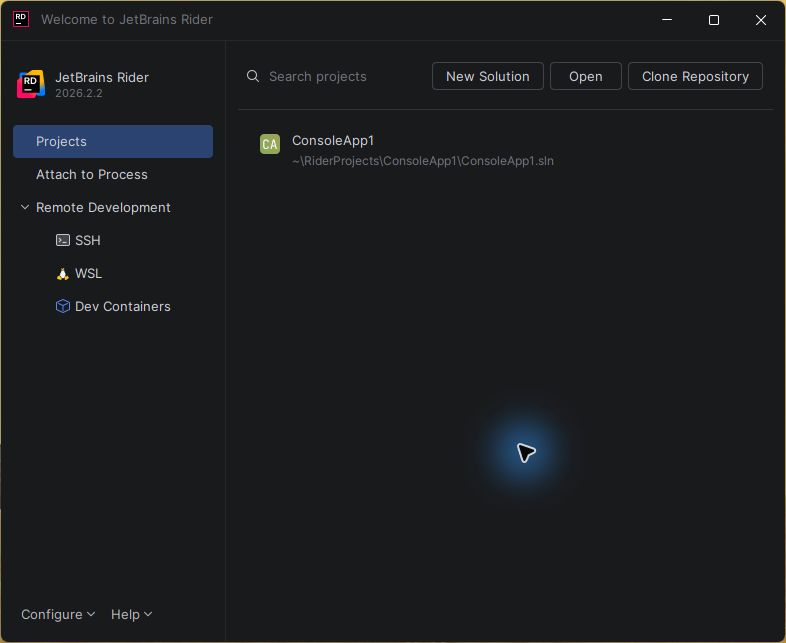
On Rider’s start screen, click New Solution, as shown in the screenshot. If a solution is already open, choose File → New Solution.
Choose Web, then Razor Pages
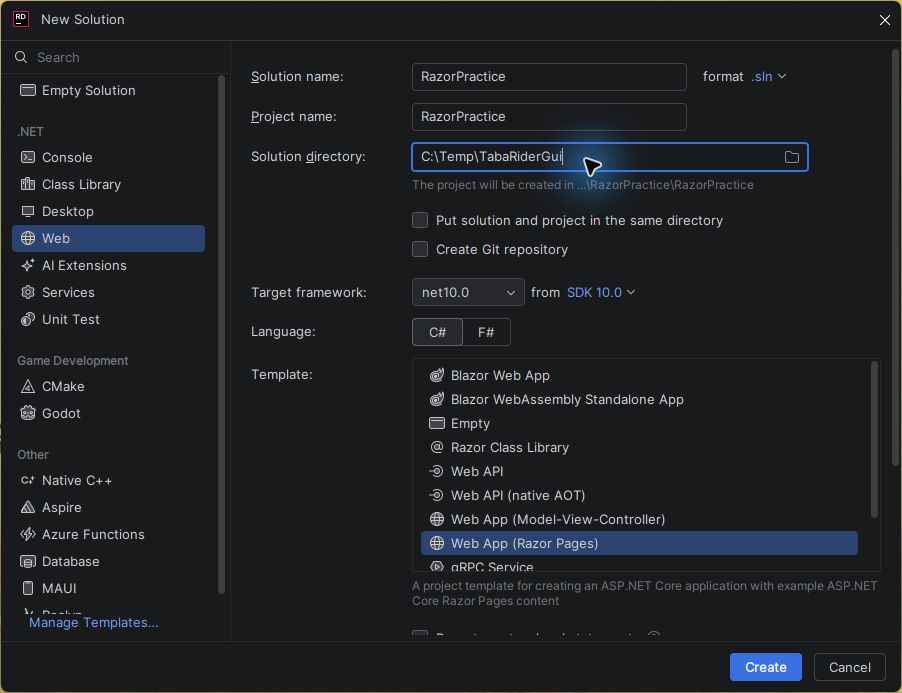
Choose Web on the left. In the Template list, explicitly choose Web App (Razor Pages) — entering the Web category may initially select Blazor, so check the selected row.
Choose any practice name, such as RazorPractice, and your own parent folder. The screenshot uses an example folder in Windows; on a Mac, you can choose WebProjects in your home folder. Do not copy the example path if it is not your folder.
Check the creation settings
- In Solution name, enter any English name without spaces, such as
RazorPractice. Keep Project name the same. - In Solution directory, choose your own parent folder, such as
WebProjectsin your home folder. Check the full path before confirming creation. Do not choose another project’s folder. - Leave Put solution and project in the same directory unchecked. This gives you an outer solution folder and an inner project folder.
- Choose C# and the net10.0 framework. Scroll down using the outer scrollbar on the right, past the template list, to see the additional options.
- Leave Do not use top-level statements unchecked. Set Auth to No authentication. Leave Add Dockerfile unchecked. You do not need to change Advanced Settings.
- Uncheck Create Git repository. At this stage, you are practising creating and running; sharing on GitHub comes after Bootstrap.
- Click Create and wait for file creation and package restore to finish.
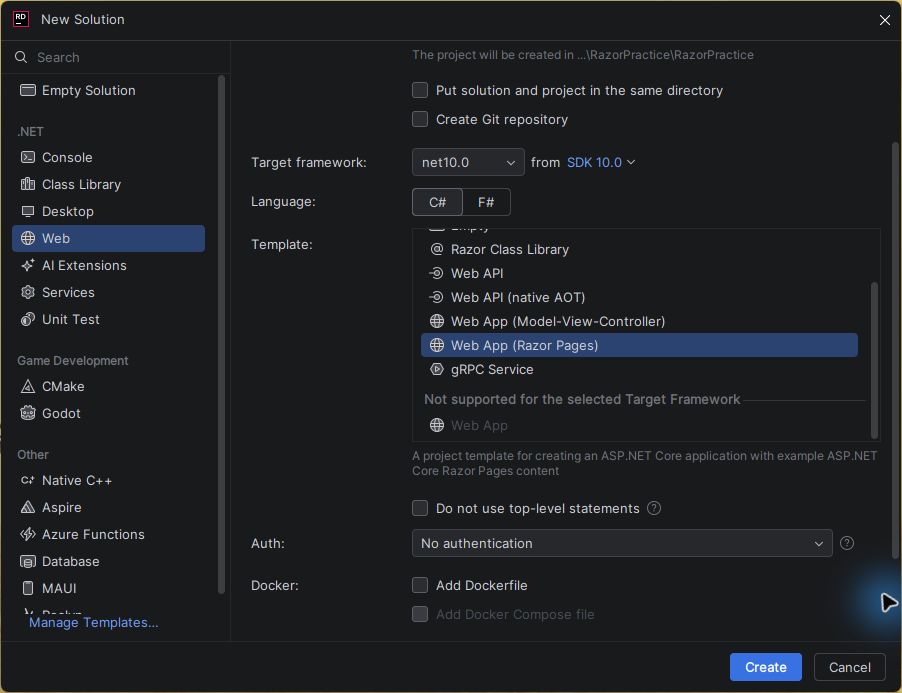
You can click any screenshot to view it at full size.
If .NET 10 or the correct template does not appear, check the SDK installation and ask the teacher. Do not choose another template just to continue.
3. Run and check
- In the Solution window on the left (the file tree), expand the project and
Pages. Check thatIndex.cshtml, a.csprojfile and thewwwrootfolder exist. - In the run-configuration list on the top toolbar, select RazorPractice: http, or your own project name followed by
http. If this profile is already selected, leave it. Click Run ▶. - Wait for the build to finish. If the browser does not open automatically, open the
http://localhost:…address displayed in the Run window. Use the port number your project displays. - Check that Welcome appears with the Home and Privacy menu. Stop using Stop ■.
- Open
Pages/Index.cshtml, replaceWelcomewithהחיות שלי(“My animals”), save and run again. Check that the heading changed.
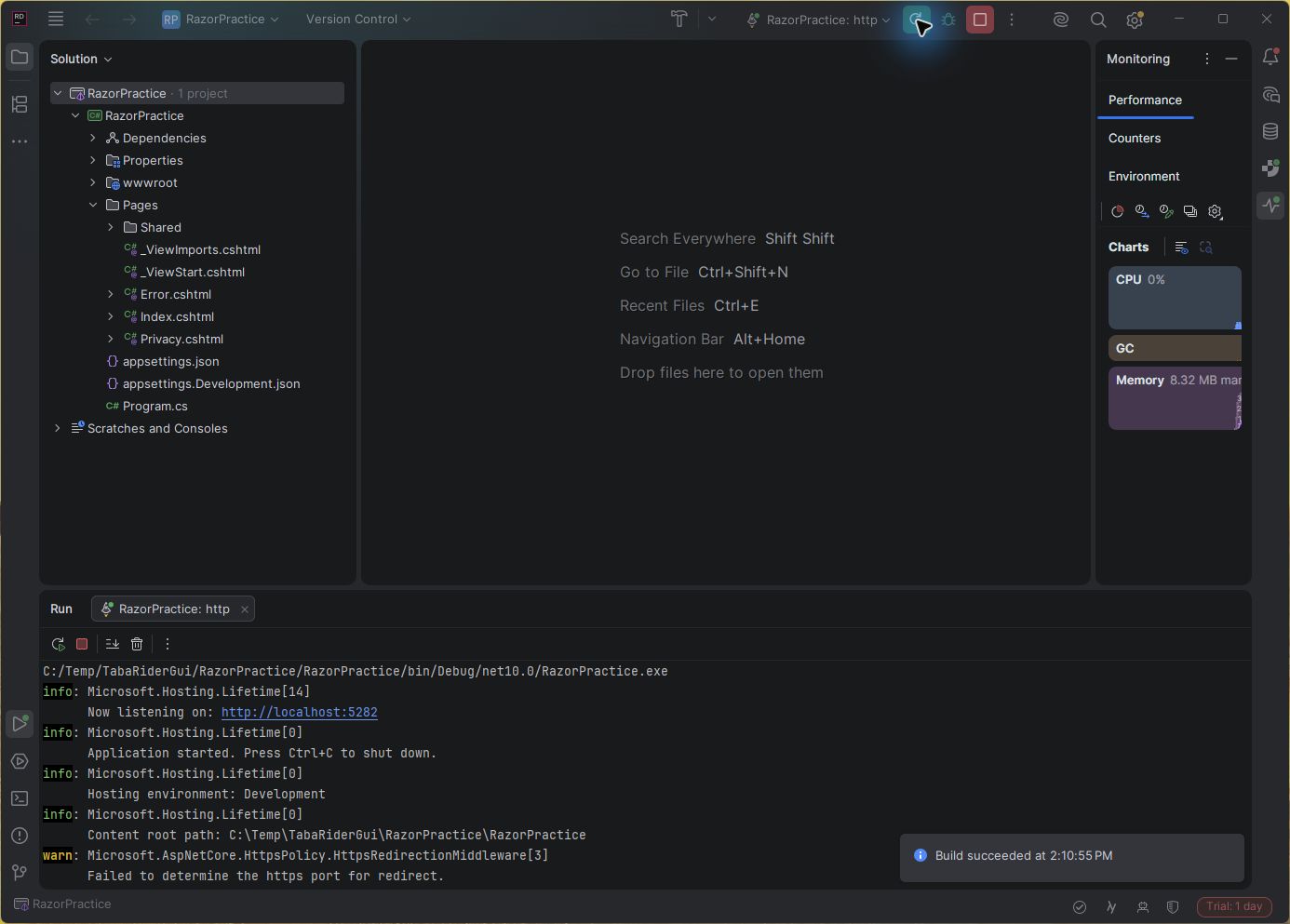
The Rider screenshot shows the project and Pages on the left, the http profile on the top toolbar and the Run window at the bottom. The Now listening on line displays your website’s address. Your port number may differ from the screenshot. The yellow warning in the screenshot says no HTTPS port was selected when running the http profile; if Now listening on appears and the Welcome page opens, the HTTP run succeeded.
The browser should display the template page with Welcome, the Home / Privacy menu and your project name.
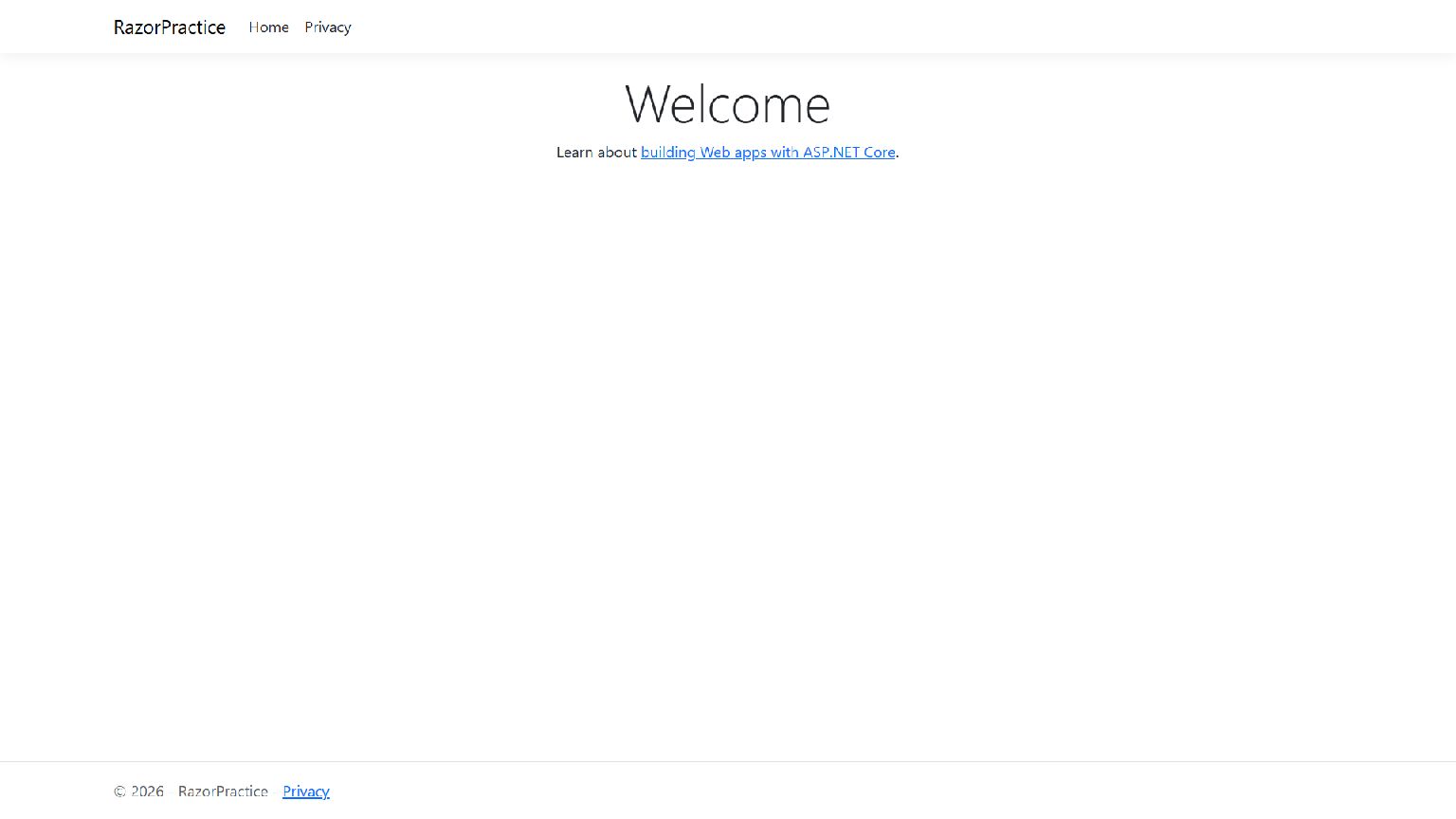
You have a Razor Pages website created from a template and running from Rider. Bootstrap is already in wwwroot/lib/bootstrap, and your personal stylesheet is wwwroot/css/site.css.
4. Continue or try again
For existing work, choose Open and open the .sln or .slnx solution file. To practise creating again, stop the run, return to New Solution and choose a new name, such as RazorPractice2, and a new folder alongside the first. Keep the earlier experiment; you do not need to delete it.
Leave Program.cs, the run settings and template files in place. You do not need to publish anything online.
Practise creating another project
- Stop the first website using Stop or Ctrl+C in the terminal.
- Return to your guide and create a second project with another name, such as
RazorPractice2, in a separate folder alongside the first. - Run it too and check that Welcome appears. Change a heading so you can tell which experiment is open.
- Stop it and reopen the first experiment. Check that its files and your change are still there.
You know how to create a website, stop it and reopen existing work. Now choose one of your experiments to continue practising content and CSS. You can try again up to the Bootstrap lesson; in the Git lesson that follows, we will register the year-long project as FirstNameLastNameRazor and share it with the teacher.
Continue with the project we created
1. Open your existing work
In VS Code, open the project folder with your chosen name using File → Open Folder. In Visual Studio, open the solution file with your chosen name, such as GuysRazor.slnx or GuysRazor.sln, from your solution folder. You do not need to create a project to reopen existing work. In Rider, open the solution file using Open.
To continue an existing experiment, open its folder, save and run. To create a new experiment, return to the guide and choose a new name and folder.
2. Edit our website
Keep the browser beside your editor. In Visual Studio or Rider, run the http profile. In VS Code, open a terminal in the folder containing the .csproj file and run:
dotnet watch --launch-profile http
Next we will adapt the home page and shared layout for Hebrew. In these examples, RazorTaba is the name of the inner project folder. If you chose your own name in Visual Studio, replace that part with your name: for example, GuysRazor/Pages/Index.cshtml. When you have an outer solution folder, paths start there; in VS Code, if you opened the .csproj folder directly, start with Pages/Index.cshtml without adding another folder. These files were created during setup; now we will edit them.
Inside RazorTaba/wwwroot, create a folder named images and copy in the fox.svg you saved in first-page in the previous lesson. The home page image will then be at RazorTaba/wwwroot/images/fox.svg.
3. Save and check
Make the code changes below, save the files and check the website. Try changing a heading or paragraph, save again and see what changed. If an experiment fails, read the error and compare the section you changed with the example.
Code changes
RazorTaba/Pages/Index.cshtml
Start with the page created by the template. If you changed Welcome earlier, you will see your heading instead. Change the page content; the menu and surrounding frame stay in the shared layout.
 @page
 @model IndexModel
 @{
-    ViewData["Title"] = "Home page";
+    ViewData["Title"] = "בית";
 }
-
-<div class="text-center">
-    <h1 class="display-4">Welcome</h1>
-    <p>Learn about <a href="https://learn.microsoft.com/aspnet/core">building Web apps with ASP.NET Core</a>.</p>
-</div>
+<h1>החיות שלי</h1>
+<p>זה האתר הראשון שלי. כאן אכיר לכם חיות שמסקרנות אותי.</p>
+<img src="~/images/fox.svg" alt="איור של שועל" width="180" />
RazorTaba/Pages/Shared/_Layout.cshtml
This file already exists in the template and connects all pages to Bootstrap and site.css. Do not replace it. Make only the following two changes to adapt the page direction and Bootstrap for Hebrew:
Before
<!DOCTYPE html>
<html lang="en">
⁞
    <link rel="stylesheet" href="~/lib/bootstrap/dist/css/bootstrap.min.css" />
    <link rel="stylesheet" href="~/css/site.css" asp-append-version="true" />
After
<!DOCTYPE html>
<html lang="he" dir="rtl">
⁞
    <link rel="stylesheet" href="~/lib/bootstrap/dist/css/bootstrap.rtl.min.css" />
    <link rel="stylesheet" href="~/css/site.css" asp-append-version="true" />
Leave the other lines, including the link to the file whose name ends in .styles.css, the Home and Privacy menu, the mobile menu toggle button and the scripts at the bottom. Try narrowing the window and opening the menu with its button.
Get to know the generated style files
wwwroot/lib/bootstrap/dist/css/bootstrap.rtl.min.csscontains ready-made style classes. Use their names in HTML; do not edit the library file.wwwroot/css/site.cssis the website’s personal stylesheet in this template. We will add our own CSS rules here in the CSS lesson, after the rules already generated.Pages/Shared/_Layout.cshtml.csscontains styles for the shared layout. The link toYourProjectName.styles.cssloads these styles after the build; do not create that file manually.
Leave Program.cs, Properties/launchSettings.json and the original CSS rules as generated. We already have a working website. Its running address is the one your editor or terminal displays; you do not need to choose a shared port number for every experiment.
Run and check
- The website opens at the
localhostaddress displayed by your run. - The heading and paragraph appear in Hebrew and the image loads.
- Save another change, run and make sure it appears.
- Stop the run, reopen the same project and run it.
Personal task and understanding check
Change one sentence and explain which file you edited and how you checked the result.
Save the files and show the website running. Note where the project folder is so you can open it in the next session.
AI can help you understand an error message and troubleshoot a problem. You are responsible for writing, testing and explaining the code; do not run an agent to write the project for you.